The problem: too many tabs to have a good time
A group of friends and I started streaming on Twitch and Kick with zero pretension: the idea was to play, laugh a little, and let whoever felt like watching, watch. None of this is our job, so the last thing I wanted was for it to feel like one.
The problem is that even the most casual streaming setup can’t escape tool fragmentation. To run a reasonably clean stream you end up juggling, all at once:
- OBS Studio to switch scenes between the game, intros, and breaks.
- Twitch and Kick at the same time, each with its own chat, its own way of updating title/category, and its own API.
- Discord to talk to whoever’s playing with me, without the call’s audio leaking where it shouldn’t.
- Spotify for background music.
- An audio mixer so the voice doesn’t get buried under the game, and the game doesn’t get buried under Discord.
- And, in parallel, keeping an eye on chat so you don’t miss anything while playing something that needs both hands.
That’s a minimum of six or eight windows or tabs open, each one fighting for your attention. The “off-the-shelf” solution is a physical Stream Deck, but those are expensive, and we do this for fun — we weren’t going to spend that kind of money on a weekend hobby. So, being a programmer, I did what any programmer with some free time and a graphics tablet on the desk would do: I built my own.
That’s how BetoDeck was born.
So what exactly is BetoDeck?
BetoDeck is my personal control center for streaming without losing my mind. It’s a web app that runs locally and centralizes everything I used to have scattered across a thousand tabs: OBS control, a unified Twitch + Kick chat, an audio mixer, a Spotify player, live title/category management, and a panel of custom macros and automations.
I run it from an XP-Pen Artist 15.6 tablet sitting next to my main monitor, so the whole design is built to be touched with the pen or a finger without ever having to look down at the keyboard or tab out of the game. That’s also where the aesthetic comes from: a dark interface with cyan and magenta accents, monospace type, and a cyberpunk vibe that, honestly, makes running a stream feel more like piloting a ship than filling out a form.
Architecture: keep it simple, keep it fast
When I started thinking about how to build this, priority number one was latency. A control panel that takes a moment to react is worse than no panel at all: if I hit “switch scene,” I want it to switch now, not half a second later while my friends are yelling at me over a hot mic.
With that in mind, I ruled out any heavy framework and put together a deliberately small architecture:
┌─────────────────────┐ WebSocket / HTTP ┌──────────────────────┐
│ BetoDeck Frontend │ ───────────────────────────────▶│ BetoDeck Server │
│ HTML5 + CSS3 + JS │◀─────────────────────────────── │ Node.js (bridge) │
│ vanilla + Vite │ real-time state └──────────┬────────────┘
│ (XP-Pen tablet) │ │
└─────────────────────┘ │
┌────────────────────────┼────────────────────────┐
▼ ▼ ▼
OBS WebSocket v5 Twitch (Helix + IRC) Kick (sockets)
scene control, chat, title, chat, title,
audio, recording, live category, events category, events
Runtime — Node.js as a local bridge. The server doesn’t live on any hosting provider: it runs on my own machine, right next to OBS, and acts as the middleman between the interface I see on the tablet and every external service. It speaks HTTP for one-off actions (saving a title, firing a macro) and WebSockets for anything that needs to feel instant: scene state, audio levels, chat events, and alerts.
Frontend — HTML5, CSS3, and vanilla JavaScript, bundled with Vite. I dropped React (and any other component framework) on purpose. For a panel that’s constantly updating with real-time data — VU levels, chat messages, counters — a virtual DOM’s overhead doesn’t buy me anything I can’t get with direct DOM manipulation and a handful of well-organized functions. Vite is used purely as a bundler and dev server, so I get hot reload while iterating on the interface, without dragging in an entire framework just for that.
Connectivity — three integrations that are all very different from each other:
- OBS WebSocket v5: OBS Studio’s official protocol. It’s used both to command (switch scenes, start recording, go live) and to listen (know which scene is currently live, which audio sources are active, the stream’s status) and keep that information in sync with the interface without me having to do anything.
- Twitch Helix + IRC: Helix (Twitch’s REST API) handles everything about updating the channel’s title and category; chat, on the other hand, is heard over IRC, Twitch’s legacy protocol for real-time messages.
- Kick (sockets): Kick doesn’t share any infrastructure with Twitch, so I had to build a completely separate integration to read its chat and update title/category — with its own event model and its own categories, which don’t even match Twitch’s.
Having three different providers speaking three different protocols (OBS’s binary/JSON WebSocket, Twitch’s IRC, Kick’s own sockets) and getting them all to show up merged into one coherent interface is, honestly, the most fun part of the whole project.
A tour of the interface
The fixed panel: unified chat and system status
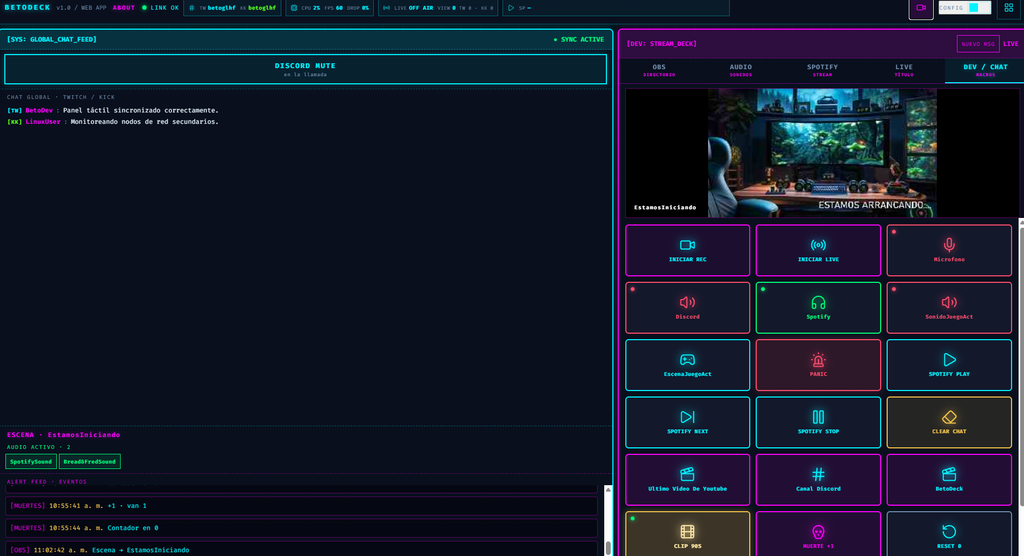
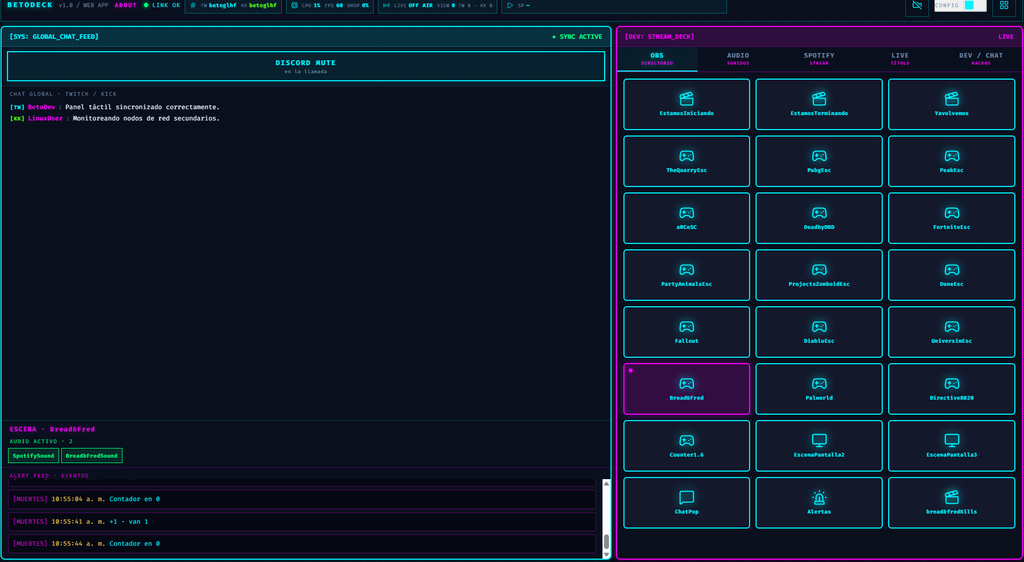
The left half of the screen is fixed and always visible, no matter which tab of the right-hand panel I’m working in. That’s where the GLOBAL_CHAT_FEED lives: a feed that merges Twitch and Kick messages into a single timeline, each one tagged with its source platform ([TW], [KK]) and color-coded so you can tell them apart at a glance. Right at the top there’s a big Discord mute button for the call — the one I use the most, no contest, because it’s the one I need to be able to hit blind the moment someone yells something that wasn’t meant for the stream.
Below the chat, a status block shows OBS’s currently active scene in real time (“ESCENA · Bread&Fred”) along with the audio sources currently playing (“AUDIO ACTIVO · 2”: SpotifySound, Bread&FredSound), and further down an Alert Feed logs events: scene changes reported by OBS ([OBS] 11:02:42 a. m. Escena → EstamosIniciando) and game-macro events ([MUERTES] 10:55:41 a. m. +1 · van 1). In practice, it’s the stream’s log console, always in view.
Up in the top bar, a quick glance confirms everything’s healthy: LINK OK, connected Twitch and Kick handles (TW betoglhf / KK betoglhf), OBS’s CPU and FPS usage (CPU 1% FPS 60 DROP 0%), and the live status (LIVE OFF AIR, or live with viewer counts per platform).
OBS directory: every scene, one tap away
The OBS · Directorio tab lists every configured scene as a grid of buttons: from transition scenes (EstamosIniciando, EstamosTerminando, YaVolvemos) to one scene per game the group plays (TheQuarryEsc, PubgEsc, PeakEsc, DeadbyDBD, FortniteEsc, PartyAnimalsEsc, DiabloEsc, Fallout, Palworld, Directive8020, among others), plus utility scenes like Counter1.6, secondary-screen captures (EscenaPantalla2, EscenaPantalla3), and special overlays like ChatPop, Alertas, or bread&fredKills. The active scene gets highlighted with a magenta border and a status dot, so in the middle of a game I only need to recognize the color, not read the text.
Every button fires an OBS WebSocket call that switches scenes instantly, and thanks to the permanent event listener, the rest of the interface (the status block on the left panel, the active audio sources) updates itself, with nothing for me to refresh.
Multi-channel audio mixer
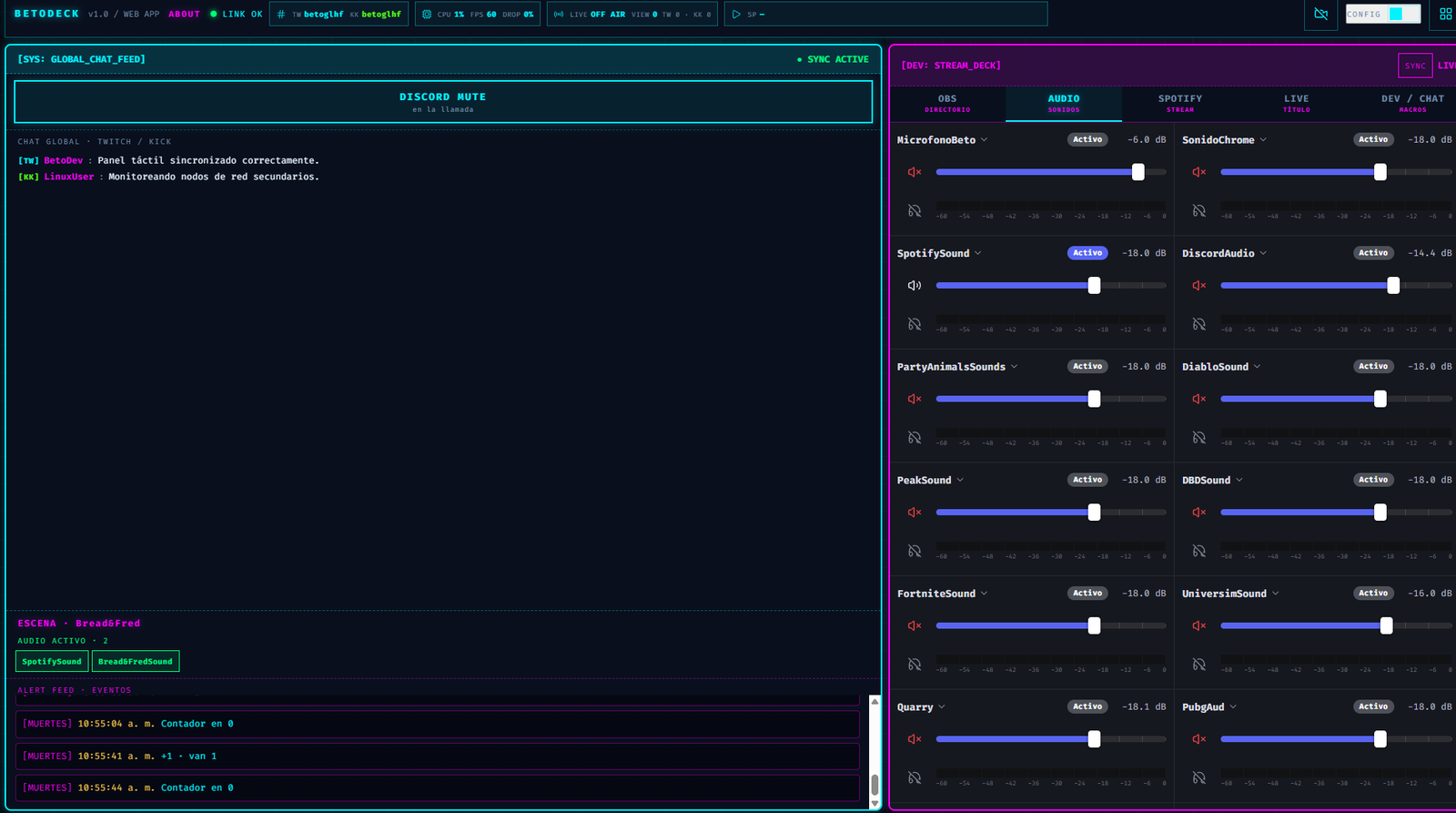
The Audio · Sonidos tab is a full mixer with a slider per channel — microphone, Discord audio, Spotify, and a separate source for every game that has its own distinct sound (FortniteSound, DiabloSound, PubgAud, DBDSound, Quarry, PartyAnimalsSounds, UniversimSound, SonidoChrome, among others). Each channel shows its status (Active/muted), its current level in dB, and an individual mute button, plus a small VU meter below the slider for real-time levels. This directly replaces what I used to solve by jumping between the Windows mixer, OBS’s mixer, and Discord’s — now it’s all in one place, synced with OBS’s actual audio sources.
Spotify, built in
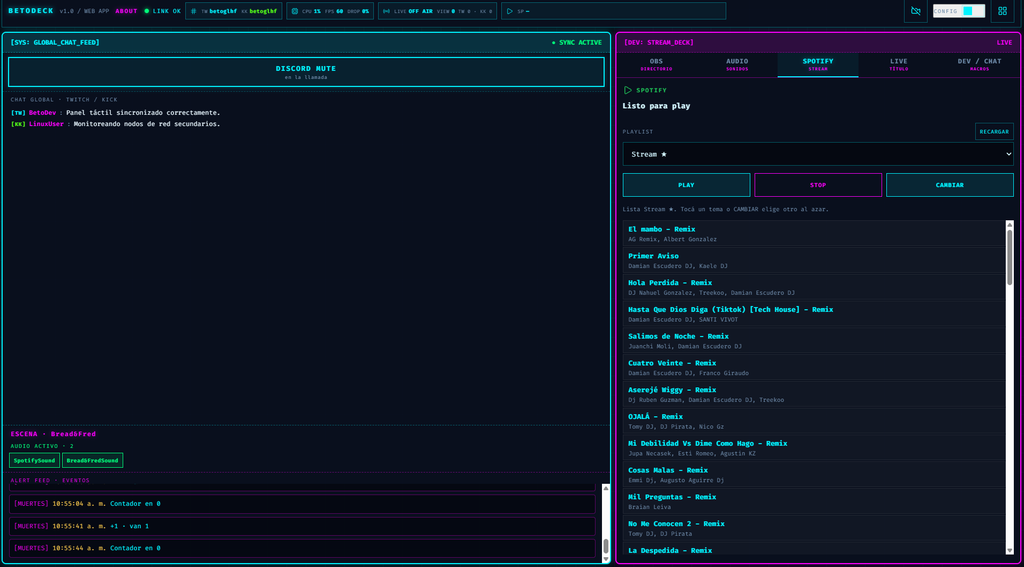
In Spotify · Stream I can pick the active playlist (in this case, “Stream ★”), see the full track list with artist names, and control playback with Play, Stop, and Cambiar (which picks a random track from the playlist) without ever touching the Spotify app. It’s a small detail, but it means one less window open and one less interruption mid-match.
Title and category, for both platforms at once
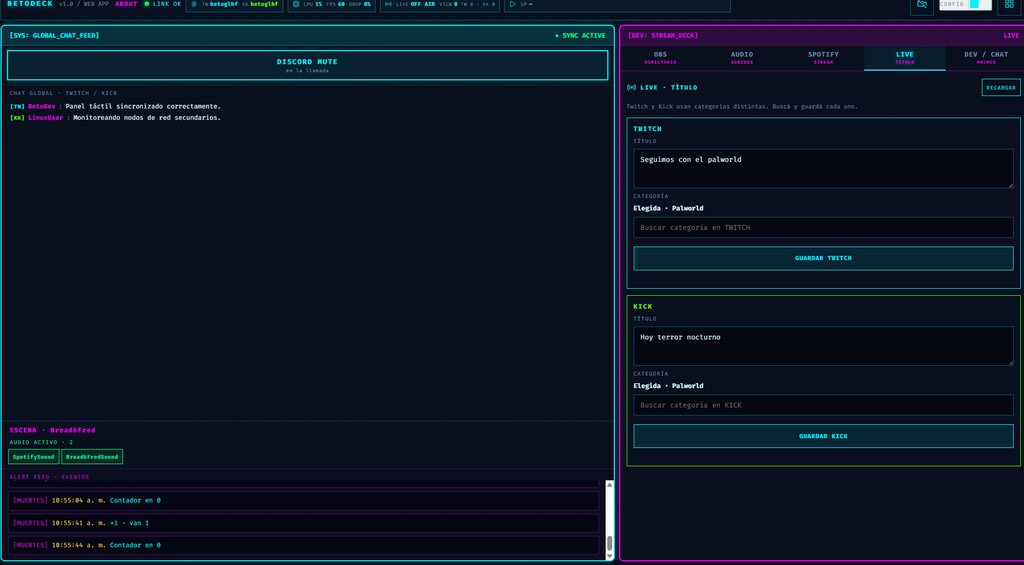
This is the tab that saved me the most headaches. Twitch and Kick handle game categories completely differently — neither the listings nor the IDs match — so the Live · Título tab keeps both forms separate: one searches and saves the category on Twitch via Helix, the other does the same thing against Kick’s API, each with its own editable title and its own independent save button. This used to mean logging into each platform’s dashboard separately every time we switched games; now it’s two textareas and two buttons, without ever leaving the panel.
Macros and automation: the gamer touch
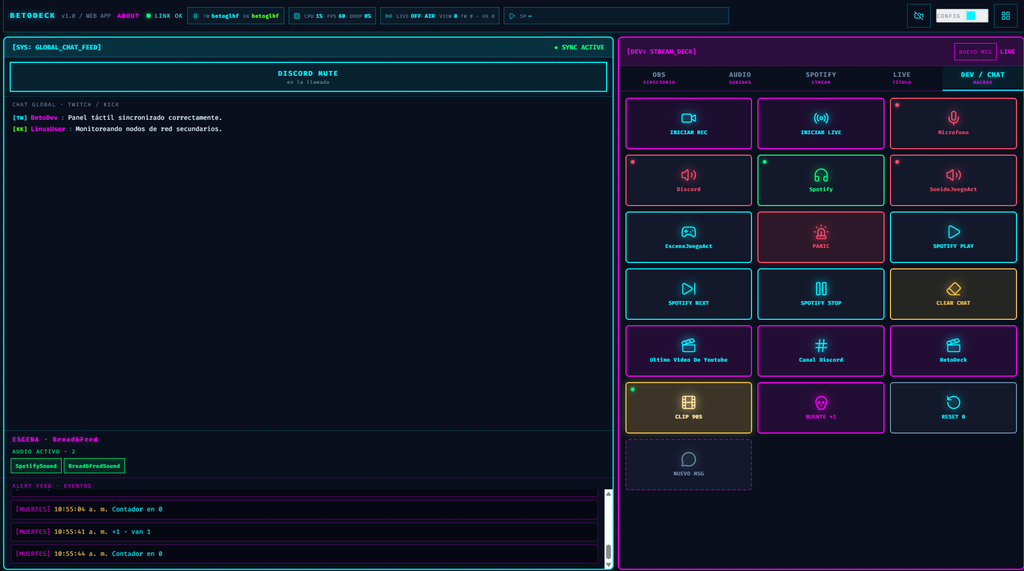
Dev / Chat · Macros is the panel I use the most during actual gameplay, because it groups one-tap actions for everything that used to be a keyboard shortcut or a click in another window:
- Stream control: INICIAR REC, INICIAR LIVE.
- Audio toggles with visual status (green/red dot): Microfono, Discord, Spotify, SonidoJuegoAct.
- EscenaJuegoAct: a shortcut that always points to “whatever scene matches the game I’m currently playing,” so I never have to remember which one that is.
- PANIC: the panic button — kills everything sensitive at once when something happens that shouldn’t go on air.
- Spotify controls mirrored here (SPOTIFY PLAY, SPOTIFY NEXT, SPOTIFY STOP) so I don’t have to switch tabs.
- CLEAR CHAT: clears the unified chat feed.
- Content shortcuts: Ultimo Video De Youtube, Canal Discord, BetoDeck (likely quick links I use to answer chat when people ask).
- CLIP 90S: triggers OBS’s circular buffer to save the last 90 seconds — for saving that play or that chat moment without cutting the stream.
- MUERTE +1 / RESET 0: a custom death counter. Each tap adds one, gets logged in the Alert Feed ([MUERTES] 10:55:41 a. m. +1 · van 1), and, under the hood, updates a local file that a text source in OBS reads and displays on screen — so the counter shows up on air without me typing anything by hand.
- NUEVO MSG: for sending a manual message to the feed, typically for system notices like “Panel táctil sincronizado correctamente.”
One of the nicest macros to watch in action is the live preview: when I open the macros tab, a live crop of whatever scene is currently on air shows up at the top (for example, the EstamosIniciando scene with the “ESTAMOS ARRANCANDO…” banner), so I can confirm at a glance that what people are seeing matches what I think is happening — without needing OBS open on another monitor.
Under the hood: details you won’t see in the screenshots
A few technical decisions that aren’t obvious from looking at the interface, but are what make everything feel solid while live:
Centralized state, not on-demand polling. Instead of the interface asking the server “which scene is active right now?” every time it needs to know, the Node.js server keeps a persistent WebSocket connection open to OBS, Twitch, and Kick, listens to their events, and pushes changes to the frontend the moment they happen. That’s what lets the CPU/FPS counter, the active scene, or each audio channel’s “Active” status update on their own, with no polling and no need to refresh the interface.
One unified feed over two different formats. Twitch IRC and Kick’s sockets share neither a message structure nor an event model. The server normalizes both into a common format before emitting them to the frontend, which is what lets chat show up as a single coherent feed instead of two widgets taped together.
Automations with their own state. The death counter isn’t just a button that bumps a number on screen: it persists to a local file that OBS reads as a text source, which means it survives a panel restart and can be reused from any scene with no reconfiguration.
Designed for pen and finger, not mouse. Since I use the XP-Pen tablet as the control screen, every button is sized and spaced for finger/pen precision, not cursor precision. The CSS gradients and glowing borders aren’t just aesthetics either: they help each button’s active/inactive state stand out at a glance, without having to read text in the middle of a match.
Philosophy: coding to solve your own problems
Beyond the feature list, what I like most about BetoDeck is what it represents: the idea that programming doesn’t have to be separate from the things you do for fun. I didn’t build it to sell it or to add a generic line to a résumé — I built it because one Friday night, in the middle of a game with friends, I realized I was spending more time switching windows than actually playing.
That, in the end, is what BetoDeck comes down to: taking a small, concrete, everyday problem and solving it with the tools you already know how to use. Making coding and streaming with friends feel, for once, like the same activity.
Leave a Reply